Monday, 30 May 2016

How to Generate weekly Preventive Maintenance Work Order in IBN Tivoli Software maximo ?

How to  Generate weekly Preventive Maintenance Work Order in IBN Tivoli Software maximo ???

Step by Step

 --------------------------------------------------------------
In The PREVENTIVE MAINTENANCE module
---------------------------------------------------------------
↓

Click on Preventive Maintenance icon
↓
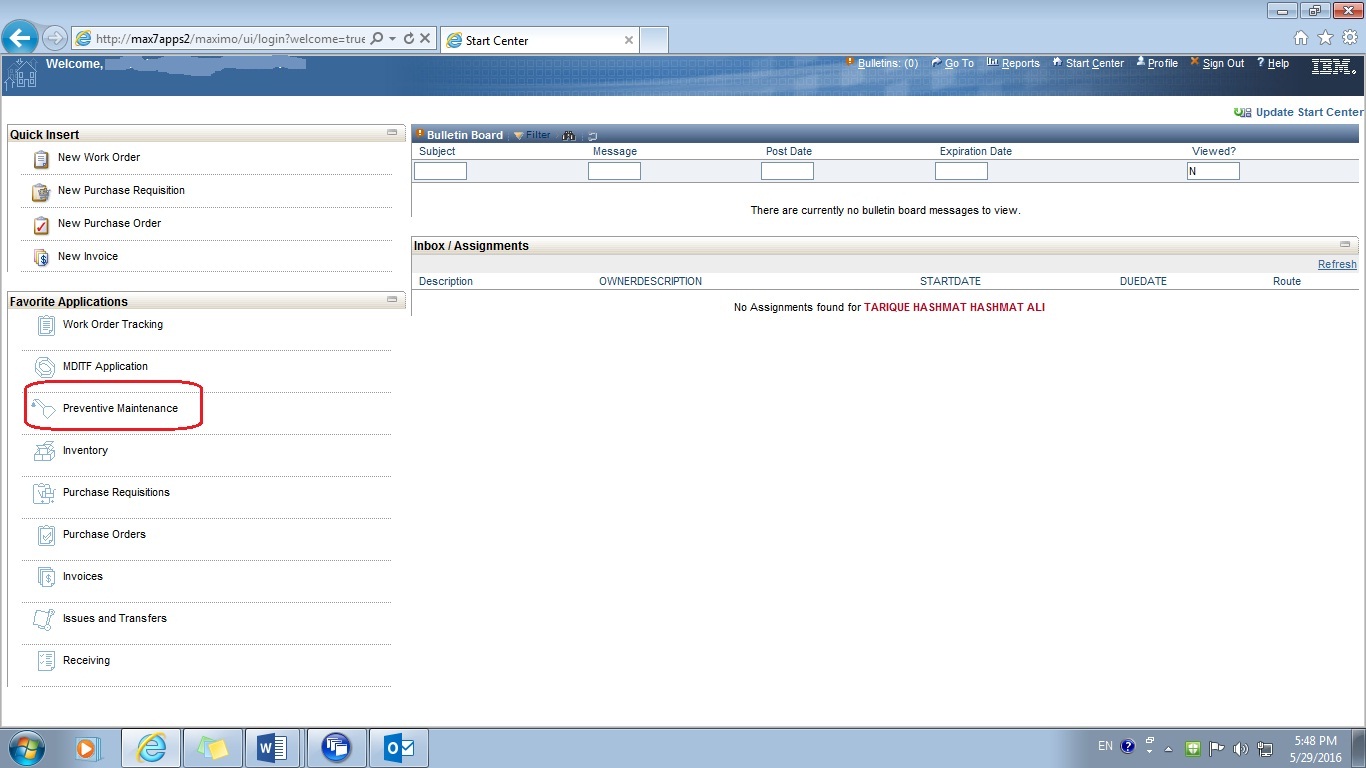


Click on Advanced Search
↓

A Query Box will appear
 

 ↓

Enter date on box à  Estimated Next Due Date   FROM    TO
↓
Click on FIND button
( For Example -  If you Generate PM Work Order on Thursday from the coming week Sat, Sun, Mon, Tus, Wed, Thru … In this example Friday is holyday  
 ↓
 System will find the Estimated Next Due work order and appear on Screen
 
 
↓
Then .. Check on Checkbox name SELECT RECORDS   and   PM Checkbox also


↓

Go to SELECT ACTION dropdown menu

↓

Click on GENERATE WORK ORDERS ( A Box will appear )


↓
Fill the GENERATE WOs DUE TODAY PLUS THIS NUMBER OF DAYS  as 3

↓
Check on Checkbox  USER FREQUENCY CRITERIA

↓
Check on Checkbox  RUN WORK ORDER GENERATION IN THE BACKGROUND

↓

Click on OK Button


NOTE:          Any Question please ask on Comment box 

Saturday, 21 May 2016

Making work order in maximo


Making work order in maximo
Step By Step
 --------------------------------------------------------------------
 In the work order Tracking Application
 --------------------------------------------------------------------
Click on NEW WORK ORDER icon
↓
( Work Order number will generate automatically )
↓

Write the WO Description as example “Replace the defective natural rubber membrane”
↓

Select the LOCATION from Detail menu
↓

Select the  ASSET from Detail menu
↓

Select The PROJECT#  from  Select Value
↓

Select The WORK TYPE (example – CM, OP, CR,  HK etc. )
↓

Select the GL ACCOUNT ( exp - OM-PLEM-JD-20101-0089-11101 )
↓

Select the FAILURE CODE (example – ARLK  etc. )
↓

Select the SERVICE CODE (example – H etc. )
↓

Select the PRIORITY (example – 9 etc. )
↓


Select the TARGET START & TARGET FINISH date  
↓

Write  the TOTAL ESTIMATED MAN HOURS
↓

 Write the work belonging SUPPERVISOR id number


→  Now go to Tab PLANS →  In PLANS  →  go to LABOR    


↓
Click the NEW ROW  → Insert LABOR ID number  & REGULAR HOURS


The click on MATERIALS
↓
Insert the ITEM NUMBER of material ,  QUANTITY  &  STORE Number